Saving and reopening projects
The .slp project file keeps a working session — inputs, layout, hand edits, diagram and materials list — what it leaves out, and how it refuses a file that has been altered.
A project file keeps a working session, so you can stop mid-design and come
back to it. It uses the extension .slp, for Solar Layout Project, and it is
written and read only by the application itself.
This is separate from exporting. The Word report, the Google Earth file, the CAD drawings, the cable schedule and the Excel materials list are for the people who build the plant. The project file is for you: it is the only thing that lets you resume work rather than repeat it.
What a project file holds
| Kept in the file | Meaning |
|---|---|
| The inputs | The module, table or tracker geometry, tilt and pitch, road width, arrester radius, ICR block, corridor, strings per inverter or monitoring box, the cable-calculation tick, the weather source and file, irradiance, every loss, the site conditions, degradation and the exceedance probabilities |
| The layout | The placed tables or tracker units, control rooms, inverters or monitoring boxes, arresters, and the routed cables |
| Your hand edits | Everything done in Sketch Mode — moved and added units, drawn obstructions, hand-drawn and deleted cable trenches, annotations, dimensions and text |
| The single-line diagram | The symbols, wires and text on the drawing sheet |
| The bill of materials | The materials list as it currently stands, including any edits or a template you replaced it with |
| The terrain result | The elevation model and the ground it excluded |
What it does not keep
A reopened project shows the defaults for these, whatever you had set:
- The three cable allowances in the Cables card — inter-module lead, the string return run, and DC cable slack.
- Everything in Structures & Shadow (keep-clear) — footprints, the shadow window, the clear-in-shadows tick, street lights.
- Everything in Topography (slope-aware exclusion), and the contour file path.
- Maximize placement and Add half tables.
- The Place Lightning Arresters tick.
- The shading auto-compute tick and the module ground clearance.
Note the values you changed in those cards when you save, and set them again after reopening before you generate.
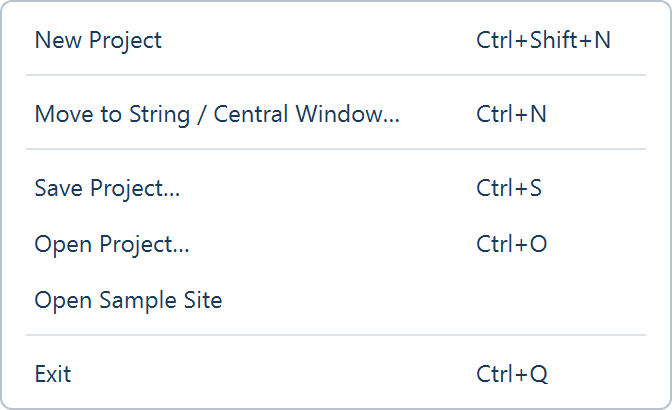
The File menu
| Item | What it does |
|---|---|
| New Project (Ctrl+Shift+N) | Opens a fresh window at the defaults, in the same design as this one |
| Move to String / Central Window… (Ctrl+N) | Opens the New design window and launches a second window for the design you choose; this one stays open |
| Save Project… (Ctrl+S) | Writes the current session to a .slp file |
| Open Project… (Ctrl+O) | Reads a .slp file back |
| Open Sample Site | Loads the bundled sample site — one boundary with a pond, a transmission line and an obstruction |
| Exit (Ctrl+Q) | Closes the application |
Saving a project
Use Save project, beside Export ▾ at the right of the view tabs in every view, or File ▸ Save Project…. Choose a folder and a name; the file type row reads PV Layout Project (*.slp), and the status bar confirms with "Project saved (full): …".
Save after anything you would not want to redo — a run whose inputs took a while to settle, a set of hand edits, a diagram you have laid out, or a materials list you have corrected.
Reopening a project
File ▸ Open Project…, then pick the .slp file. The session is restored
from it — the status bar reads "Project loaded: …" — and you carry on from
where you stopped. Reopening a project with cable calculation on does not
raise the performance notice again.
Starting fresh
File ▸ New Project opens a fresh window at the defaults in the same design; the current window stays open, so save it first if it is worth keeping — nothing is written to disk unless you write it.
Moving to a different design
The mounting and inverter choices belong to the window and cannot be changed inside it. The design chip in the ribbon — reading Fixed tilt · String inverter ▾ or the like — and File ▸ Move to String / Central Window… both open the New design window and launch a second, independent window beside this one. The new window starts empty: it does not inherit the boundary file, the inputs or the layout. See Choosing a design mode.
The file checks itself when it opens
A project file is a single binary container, not a text file. It carries a checksum computed over its own compressed contents, which is verified before anything is loaded. A file that has been altered, truncated by a failed copy, or is not a project file at all fails that check and is reported as an error instead of opening.
Do not edit a .slp file by hand, and do not try to produce one from another
tool or a script. Any change to its bytes — including a well-intentioned one —
makes the checksum disagree with the contents, and the application refuses the
file rather than loading part of it.
Two practical consequences:
- Copy project files whole. Move them with a normal file copy, and check the copy opens before deleting the original. A transfer that stops partway leaves a file that does not load.
- To get the design out of the application, export it. Export ▾ carries the layout into formats other tools read: a Google Earth file, a layered CAD drawing in UTM metres, an ICR-block drawing set, an Excel cable schedule, the Word project report, and the plot as an image. See The project report.
Comparing several designs on one site
Every window is its own session, and two or more can be open at once, so options can be compared side by side as well as as separate project files. A workable habit:
- Load the boundary file, set the inputs your design fixes, generate, and save as one project per option — a portrait table against a landscape one, a derived row pitch against a tighter one you override, arresters on against off. File ▸ New Project gives each option its own window.
- Give each file a name that states the variable, not a version number, so the comparison survives being read months later.
- Read the same Summary rows in each — DC capacity (MWp), Full tables, ICR blocks and, once energy has been calculated, CUF (%) and the probability rows. Copy on the Summary view puts each sheet on the clipboard for a spreadsheet.
Changing the mounting or the inverter topology is the one comparison that needs the design chip rather than New Project, because those belong to the window rather than the inputs.
Where to go next
CAD drawing export
The layered drawing export — every layer and what it carries, why coordinates are in metres, which layers are conditional, and the ICR-block drawing set and cable schedule beside it.
Every parameter and its default
The complete input reference — every card on the five stage tabs, each field's shipped default, its accepted range, and what it changes.