Materials list templates
The built-in reference materials list offered for your design, how to open it in its own window, and the action that replaces the computed list with it.
A template is a complete materials list for a reference plant, written out in full and shipped with the application. You load it into a window of its own, edit it, and — if you want to — put it in place of the list computed from your layout.
Templates exist because the two lists know different things. The computed list knows the plant: how many tables were placed, how many control rooms, how long the cable runs are. A template is a written-out list for a plant of the same kind, whose rows and quantities you correct against yours rather than typing a list into an empty table.
The template offered for your design
The BOM Template: selector on the BOM TOOLS panel offers two entries: Plant (auto-computed) — the list computed from the layout — and the one built-in template that matches the current design. Four templates ship, one per combination of mounting and inverter; you see only the one for the combination you chose at launch. See Choosing a design mode.
| Design | Template offered |
|---|---|
| Fixed tilt, string inverter | 30MWp_20MW_String_FT |
| Fixed tilt, central inverter | 30MWp_20MW_Central_FT |
| Single-axis tracker, string inverter | 26.65MWp_20MW_String Inverter_SAT |
| Single-axis tracker, central inverter | 26.65MWp_20MW_Central Inverter_SAT |
Read the name and you know what is inside. FT is fixed tilt, SAT is a single-axis tracker, and the two capacities are the DC and AC ratings of the reference plant the list was written for.
Offering only the matching template is the point: the inverter topology decides which line items exist at all (a string-inverter list carries string inverters and the AC side that follows them; a central-inverter list carries string monitoring boxes and DC trunks instead), and the mounting type decides the structural lines. The capacity is the one thing that will not match your plant — and it only decides the quantities, which you correct against your own plant anyway.
Loading it
Open the BOM view
Click the BOM tab (Ctrl+4). The BOM TOOLS panel takes over the left column. See Bill of materials.
Choose the template in BOM Template:
Pick the template entry rather than Plant (auto-computed).
Click 📥 Load Template
The template opens in a separate window of its own, titled BOM template — followed by the template's name, beside the main window.
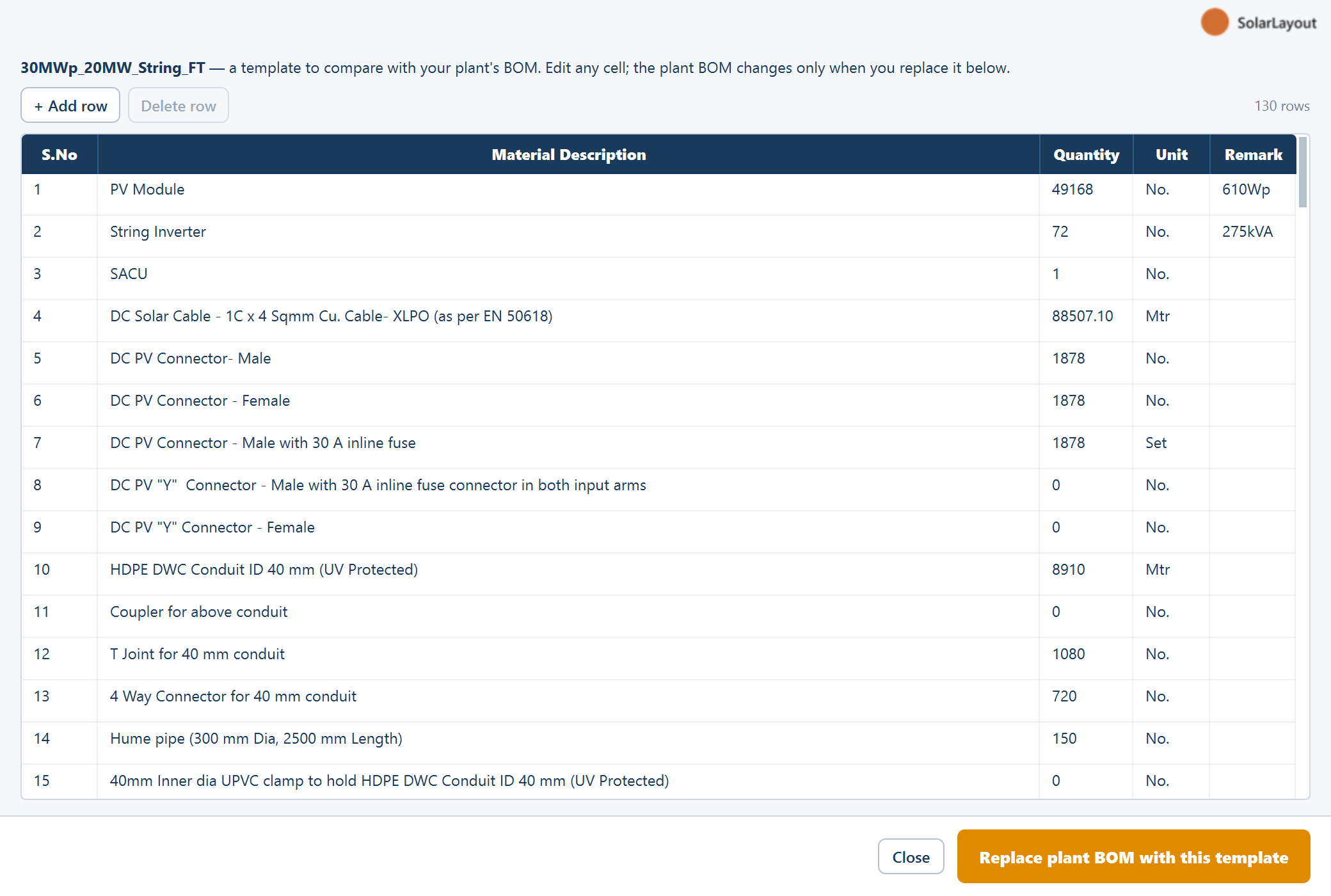
The template window is not modal. The main window stays live behind it, so you can move between the two, scroll each independently, and read a computed quantity straight across into the template. Arrange them side by side and the comparison is the whole point of the design: nothing you do in the template window touches the computed list until you explicitly ask for it.
Editing the template
The template window holds the same five columns as the computed list — S.No, Material Description, Quantity, Unit, Remark — with + Add row and Delete row buttons for the rows, and edits the same way.
What you normally change:
- Quantities, corrected against the computed list. This is the main work. The template's figures belong to its reference plant, not to yours.
- Descriptions and remarks, where your specification differs from the template's — a different cable size, a different structure grade, a make your organisation is standardised on.
- Line items, added or removed where your scope differs. A plant without street lighting does not need those lines; anything in your scope that the reference plant did not have is a line you add.
Everything the computed list can tell you is one window away while you do it: the table count, the control room count, the inverter or string monitoring box count, the arrester count, the pile count, and the cable and trench lengths.
Applying it to the plant
Replace plant BOM with this template is the primary button of the template window, and the consequential step on this page. Read this section before you click it.
The button asks for confirmation in a Replace plant BOM box, then replaces the computed list with the template's contents. The computed rows are gone — not merged, not kept alongside, not appended to. The status line confirms it: "Plant BOM replaced with the template (n rows). It will appear on the PDF Bill of Material page."
Replace plant BOM with this template replaces the computed materials list, and the list on screen is what prints in the report. After replacing, the Bill of Materials pages of the Detailed Project Report carry the template's rows and quantities — including any quantity you have not yet corrected. Correct the template first, replace second, export third.
If you close the template window after editing without replacing, it asks "You edited the template. Replace the plant BOM with it before closing?" — so edits are not lost by accident, but they are not applied by accident either.
The full chain of consequence, so none of it is a surprise:
| After replacing | State |
|---|---|
| The materials list on screen | The template's rows |
| ⬇ Export BOM to Excel / ⬇ Export BOM to PDF | Write the template's rows |
| The report's Bill of Materials pages | Carry the template's rows |
| The plant, the layout, the Summary view | Unchanged — only the list is replaced |
Getting the computed list back
⚙ Rebuild from Layout discards whatever is in the list and computes a fresh one from the plant. That is how you undo a replacement.
It is a full recompute rather than an undo, so it takes your edits with it as well as the template's rows. If there is anything in the current list you want to keep, export it to a spreadsheet before you rebuild.
Using a template in practice
The order below is the one that wastes the least work, because it settles the counts before the arithmetic.
Finish the layout and rebuild the computed list
You need real counts to correct a template against, so generate the plant, turn cable calculation on for the final run, and rebuild the computed list once. See Cable routing.
Load the template
Choose it in BOM Template: and click 📥 Load Template.
Correct the quantities against the computed list
Work down the template with both windows open, replacing its reference-plant figures with your plant's counts and lengths.
Add what your scope has and the template does not
Then remove the lines your scope does not include.
Replace the plant list, then export
Click Replace plant BOM with this template only once the template reads correctly for your plant. Everything downstream — the spreadsheet, the standalone PDF, the report's materials pages — follows from this list. See The Detailed Project Report.
A last check worth making before you circulate the result: the template is a starting point, not a validated schedule of material for your plant. Nothing in the application checks a template's line items against your design, so a line the template carries and your plant does not need will sit there quietly until somebody reads it.
Where to go next
Bill of materials
The computed list, its columns, and the rebuild control
The Detailed Project Report
Where the materials list prints, and what else the report carries
Choosing a design mode
The mounting and inverter choices that decide which template you see
Projects
Saving the session, including the materials list, to a project file
Bill of materials
The BOM view — the materials list computed from the placed layout, its five columns, the BOM TOOLS panel, every line item it can carry, and how it reaches the report and the exports.
The Detailed Project Report
Export ▾ ▸ Export Detailed Project Report writes a Word document — what it contains in order, what the drawing shows, the PDF with piles, and the rest of the Export menu.