Activate this device
Add this device to your account's access from the License / Subscription window or the ribbon, complete it in your browser, and confirm it automatically.
Activation adds this device to your account's access — there is no file to send, receive, copy or keep safe. Click Get Free Access, complete it in your browser, and switch back: the application confirms it by itself. Access belongs to your account and covers up to three devices; see How access works.
On a device that has never been activated the ribbon shows no access chip — only a gold Get Free Access button, which does exactly what the button in the License / Subscription window does. On that device the window also opens by itself at launch.
Until access is active, Generate Layout and every export will not run. Everything else in the application works, including the SLD and BOM views.
Open Help ▸ License / Subscription…
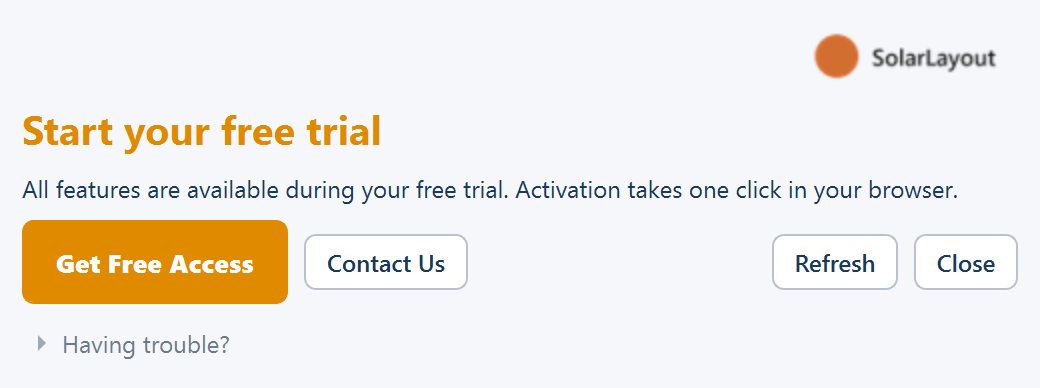
The License / Subscription window opens. On a device with no access the headline reads Start your free trial, with "All features are available during your free trial. Activation takes one click in your browser." under it, then the buttons Get Free Access, Contact Us, Refresh and Close. The Device ID is folded behind Having trouble? at the bottom; you do not need it to activate.
Click Get Free Access
The headline changes at once to ⏳ Waiting for activation — "This will
update automatically when you return here after activating in your
browser." — and your browser opens to the activation page for this device
(https://solarlayout.app/desktop/solarlayout?device=<DeviceID>).
Complete activation in your browser
Sign in — or create an account — if the page asks, then click Activate free access for this device. On your second or third computer the page says "This will be device N of 3 on your account." and the button reads Add this device instead.
If the page reads You have used all 3 devices or This device is already in use, activation stops there — see Using more than one device for what each means and what to do.
Return and confirm
Switch back to the License / Subscription window. It re-checks automatically whenever it regains focus — no need to click anything. Refresh checks immediately if you prefer.
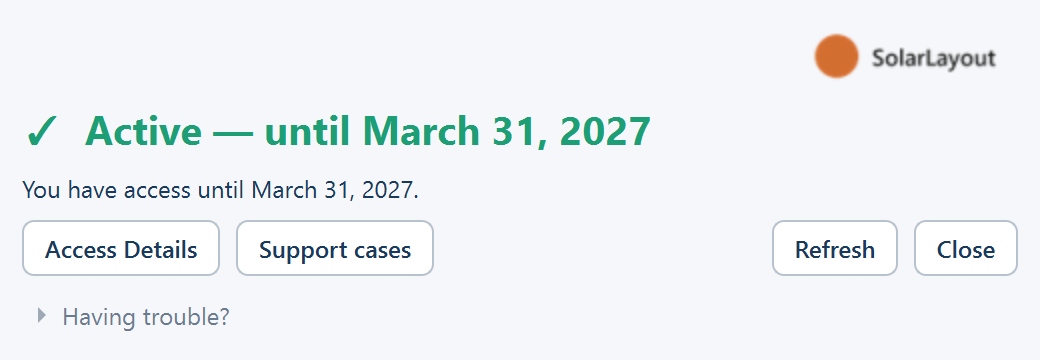
A device with active access shows ✓ Active — until <date>, with "You have access until <date>." under it, and Access Details, Support cases, Refresh and Close in place of the earlier buttons. The ribbon chip now reads ● Active — until <date>.
Generate Layout now works. Go to Your first layout.
If the headline reads Access expired — "Your free trial or subscription has ended. Contact us to purchase, or to request a trial extension." — or Access revoked — "Access on this device has been revoked. Contact us to restore it." — Get Free Access is not offered. Use Contact Us in the window, which opens solarlayout.app/contact, or write to SolarLayout at sales@solarlayout.app. See Licence problems.
If you try before activating
Clicking Generate Layout or any export before access is active opens the License / Subscription window itself, on the headline for this device's state. There is no separate message to dismiss: act on the window, then try again.
Working offline
A successful check is cached, so the application keeps working for up to three days without an internet connection; the ribbon chip reads ● Active — until <date> (offline) meanwhile. If it cannot reach the server and has no usable cached result, the window reads Access status unavailable — "We couldn't reach the SolarLayout server. Check your connection and press Refresh."
Updates, reinstalls and other accounts
Updates and reinstalls do not require reactivating. Access is checked against the server and belongs to your account, not to a file on disk, so it survives reinstalls and updates automatically. See Updates and reinstalling.
Another computer is activated the same way. Your account covers up to three devices, and every one of them shows the same end date.
A second Windows user account on the same PC has the same Device ID. Access carries over to that account without doing anything further.
Where to go next
How access works
Access belongs to your account and covers up to three devices, checked online — what it unlocks, the access chip in the ribbon, the License window's states, and the offline grace period.
Licence problems
Every state the access chip and the License / Subscription window can show, what each one means, and the fix — plus the 3-day offline grace.